

NEPI Engine – NEPI Docker Lite Setup
Introduction
The NEPI Docker Lite Setup tutorial walks you through installing, configuring, and running the NEPI software inside a Docker container while making minimal changes to the host operating system. This tutorial focuses on setting up the required NEPI users, configuring the Docker environment, initializing NEPI storage and images, and launching the NEPI container and Resident User Interface for the first time.
The Lite setup is designed for fast evaluation, development, and a demonstration trial on edge devices before running the NEPI Full Container Installation. It allows users to explore NEPI’s AI, automation, and hardware integration capabilities without NEPI managing system-level services such as networking, SSH, or storage sharing. This makes it ideal for learning, prototyping, classroom use, and early-stage testing before committing a device to a production configuration.
Prerequisites:
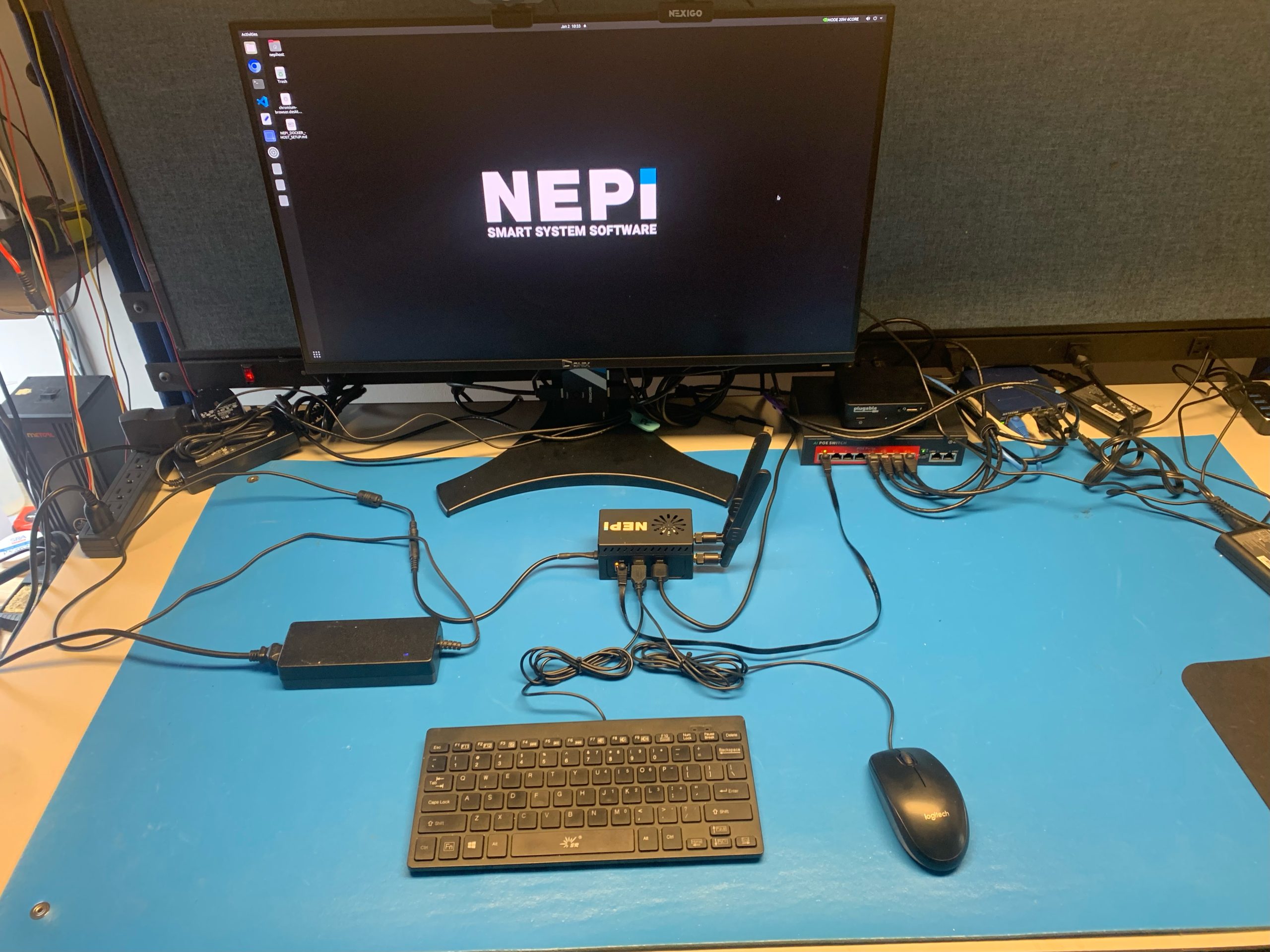
Before you begin, make sure you have the following ready. This Lite setup is designed to be quick and makes minimal changes to the system.
Hardware
NEPI-compatible device (NVIDIA Jetson)
Monitor, keyboard, and mouse connected to the device
Internet connection (Ethernet recommended, WiFi also works)
Operating System
Debian-based Linux
Tested with Ubuntu 20.04
Default Jetson Linux images are supported
User Access & Permissions
Admin (sudo) access on the device
Ability to reboot the device when prompted
Time Required
30–45 minutes
This includes:
User and environment setup
Docker Lite configuration
Image download and first launch
Note: This setup includes a few reboots. Plan to complete it in one session
NEPI Docker Lite User Setup
This section creates the nepihost user account and prepares your device to install NEPI Docker by cloning the NEPI setup repository that contains the required installation scripts.
1) Log into a user account with Administrator privileges, or use the existing nepihost account if available.
2) Open a Terminal window: right-click the desktop / Open in Terminal
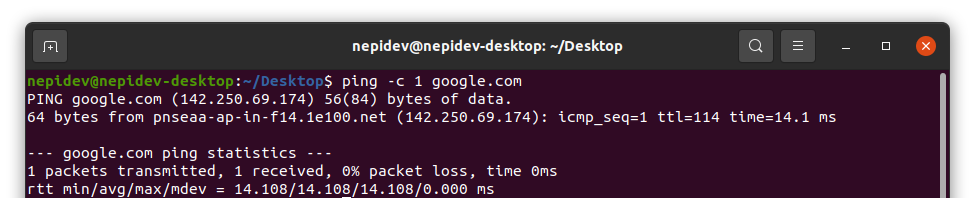
3) Confirm your system has internet access by running the following command:
ping -c 1 google.com
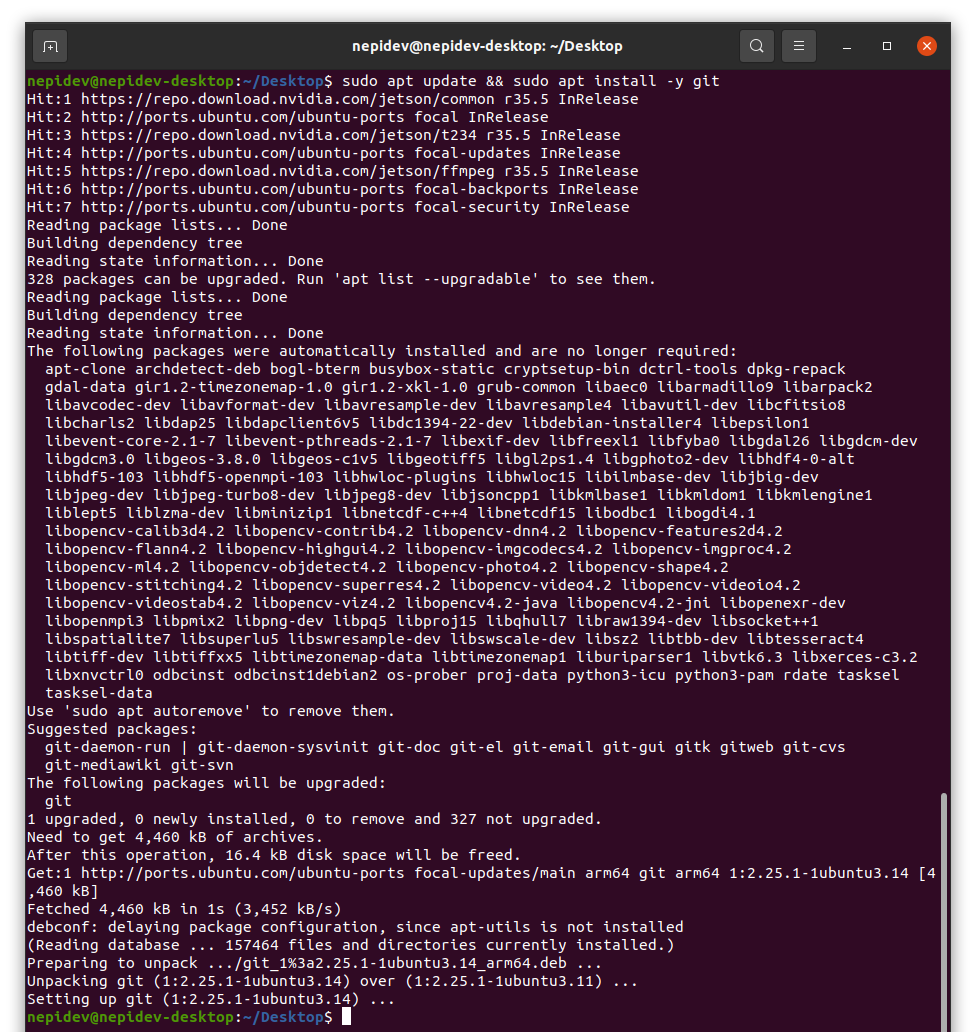
4) Update Git application:
sudo apt update && sudo apt install -y git
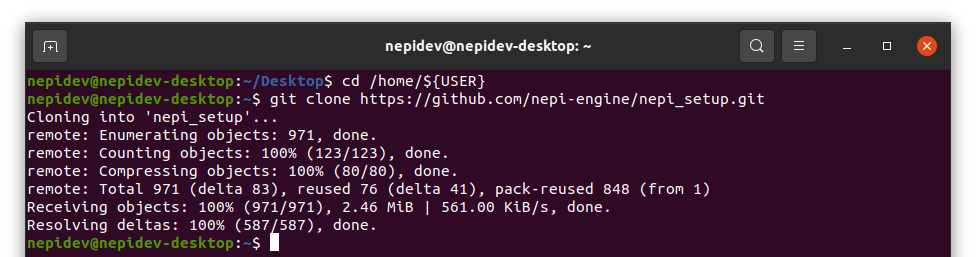
5) Clone the NEPI setup repository:
cd /home/${USER}
git clone https://github.com/nepi-engine/nepi_setup.git
6) Run the NEPI Docker user setup script (sudo password is ‘#Nsetup4You’):
cd /home/${USER}/nepi_setup/scripts
sudo su
Then:
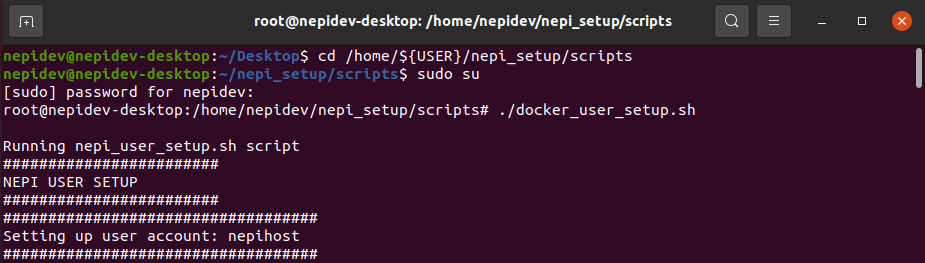
./docker_user_setup.sh
Start Screen:
End Screen:
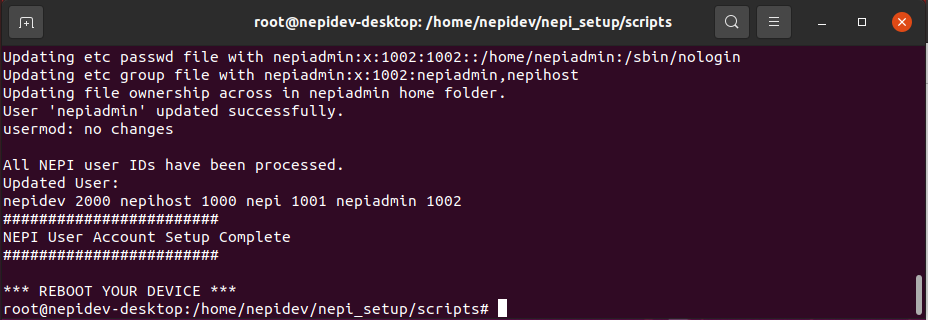
7) POWER CYCLE your system when complete to apply the new settings
NOTE: This section creates a new user account nepihost, the next section will have you login to this new user with the sudo password nepi.
NEPI Docker Lite Environment Setup
This section will set up the NEPI Docker required software environment.
1) Log into the nepihost account created in Docker User Setup (sudo password is now ‘nepi’). Go through any new user starter popups. Then Open terminal.
2) Make sure your system has internet access by running the following command:
ping -c 1 google.com
3) Clone the NEPI Setup repo:
cd /home/${USER}
git clone https://github.com/nepi-engine/nepi_setup.git
4) Run the NEPI Docker Lite Environment setup script (sudo password is ‘nepi’):
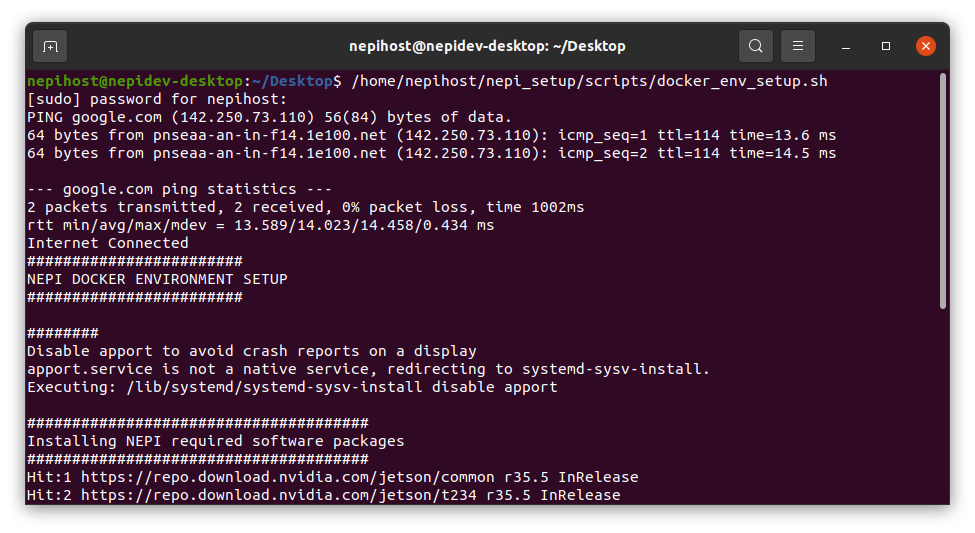
source /home/nepihost/nepi_setup/scripts/docker_lite_env_setup.sh
NOTE: For all password inputs, the text will be invisible, press enter after typing password.
NOTE: If prompted enter: ‘y’ or ‘yes’:
NOTE: This step can take around ~10 minutes to load.
Start Screen:
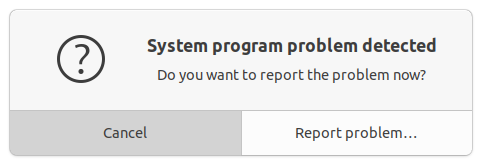
NOTE: If you get a ‘System program problem detected’ popup, select ‘Cancel’ to dismiss it.
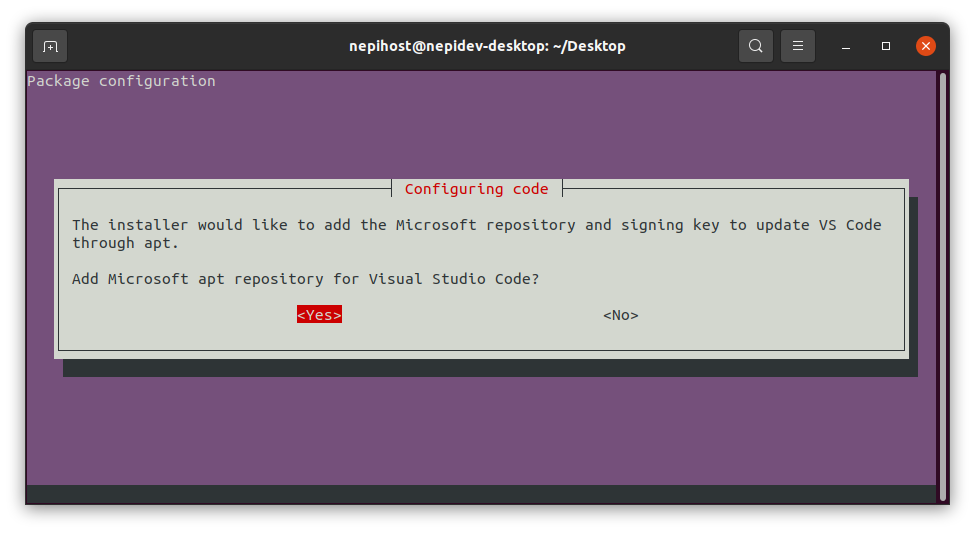
NOTE: If you get a ‘Configuration Code’ popup, select ‘Yes’ and enter to continue.
End Screen:
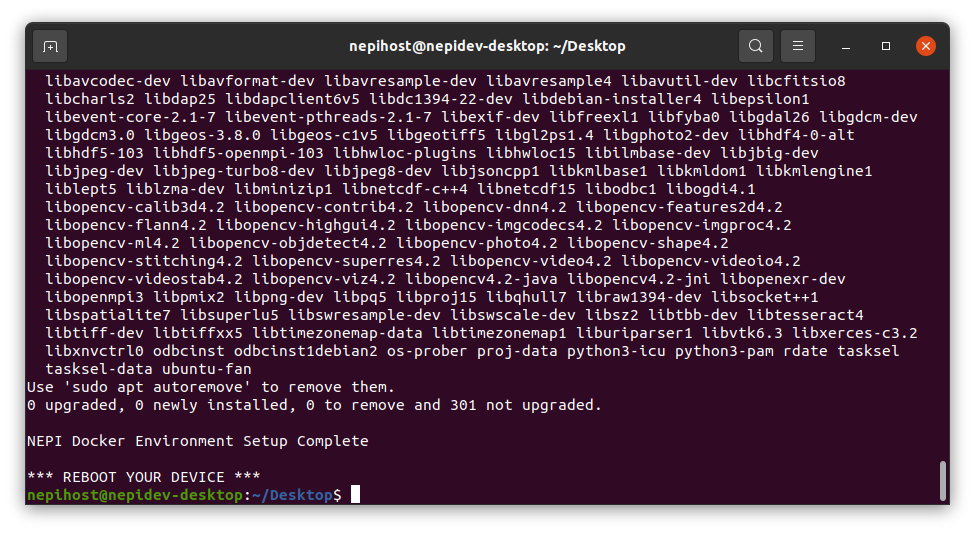
5) Once the script completes, scroll through the terminal output and verify there are no errors.
6) POWER CYCLE your system when complete.
NEPI Docker Config Setup
This section will configure the NEPI Docker configuration using the default settings. You can change settings later in the ‘NEPI Docker Customization’ section.
1) Log into the nepihost account (sudo password is ‘nepi’)
2) Run the NEPI Docker Lite Configuration setup script (sudo password is ‘nepi’):
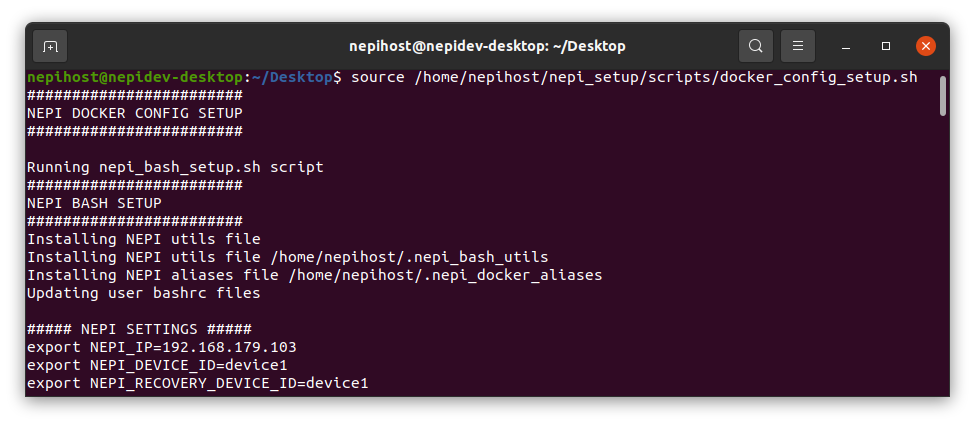
source /home/nepihost/nepi_setup/scripts/docker_lite_config_setup.sh
Start Screen:
End Screen:
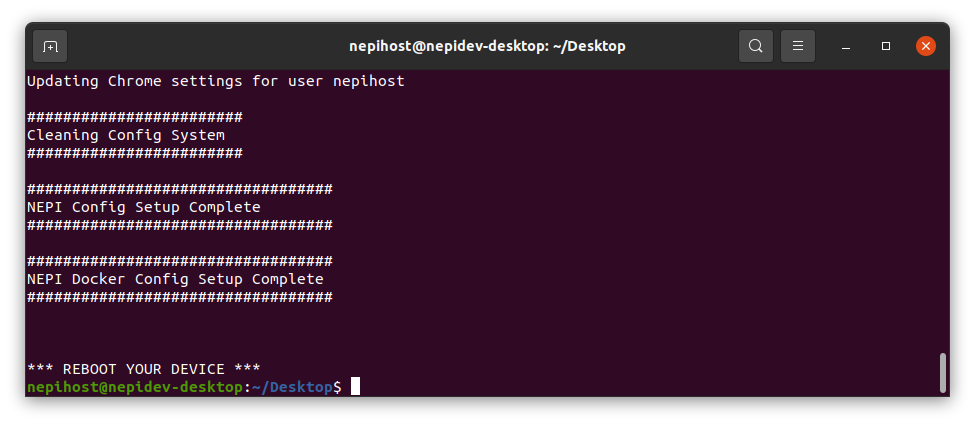
3) POWER CYCLE your system when complete.
NOTE: After this process, the following changes will be made:
– Desktop background and sidebar applications menu updates.
– NEPI bash alias and util functions added to user bash profile.
– NEPI folder shortcuts added to File Manager folder bookmarks.
– Chromium browser updated with useful NEPI browser bookmarks.
– The NEPI Docker install instructions file is added to the Desktop.
NOTE: This process will create the following NEPI Folders:
– NEPI Storage folder created at ‘/mnt/nepi_storage’, along with several user subfolders. This is where NEPI processes store user files such as: Saved Data, AI models, Import/Export Docker Images, and User Saved Configurations.
– NEPI Docker folder created at ‘/mnt/nepi_docker’, This is where NEPI Docker Images are stored.
– NEPI Config folder created at ‘/mnt/nepi_config’, along with several config subfolders.
NEPI Docker Lite Init Setup
This section will initialize and test your NEPI Docker solution. You can change settings later in the ‘NEPI Docker Customization’ section.
1) Log into the nepihost account (sudo password is ‘nepi’)
2) Check for internet connection:
ping -c 1 google.com
3) Run the Docker Lite Initialization script (sudo password is ‘nepi’). If prompted enter: ‘y’ or ‘yes’:
source /home/nepihost/nepi_setup/scripts/docker_lite_init_setup.sh
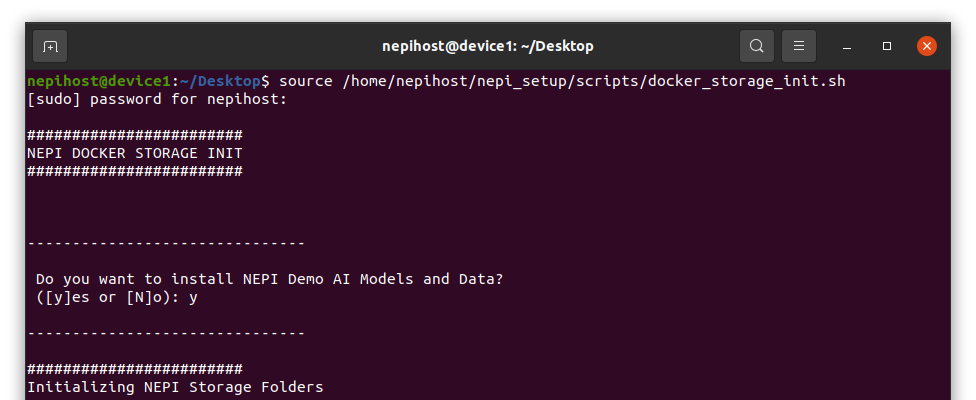
4) Run the NEPI Docker Import command (sudo password is now ‘nepi’):
nepiimport
5) After the initialization script completes, you can view and print the installed NEPI Docker Images by typing:
dimg
NOTE: This process downloads the Lite AI models, AI training scripts, sample data files, and user_configurations to folders in /mnt/nepi_storage.
NOTE: This process downloads the latest NEPI Docker Image for your system’s architecture NEPI Docker’s import folder at /mnt/nepi_storage/nepi_images.
NEPI Docker Image Testing
This section verifies that the NEPI Docker container runs successfully and that the NEPI Resident User Interface (RUI) launches correctly.
1) Start your NEPI container running:
nepistart
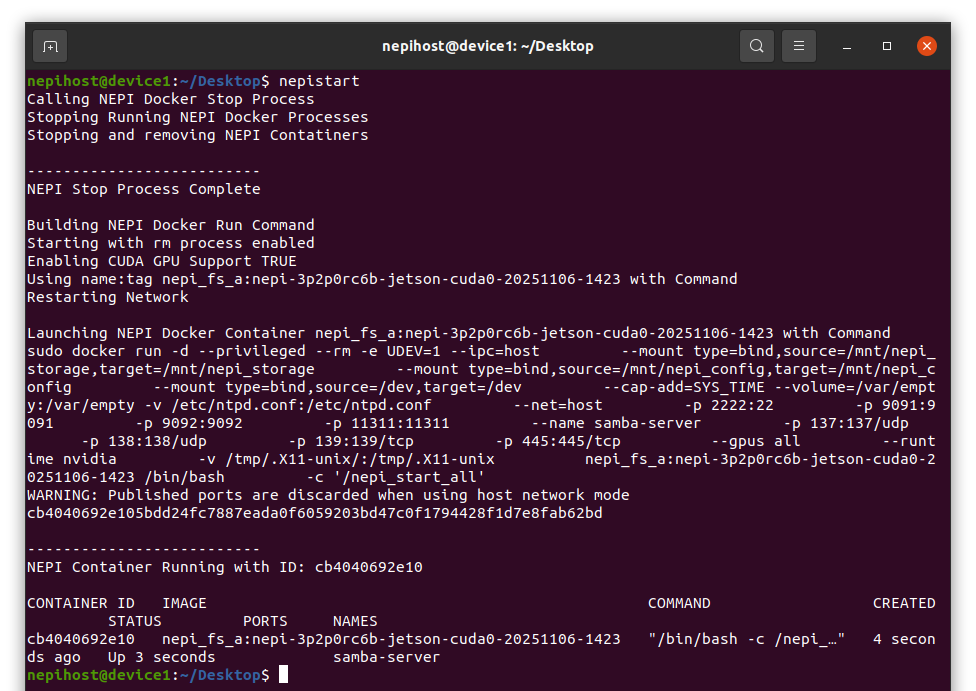
2) Wait for the startup confirmation message.
NOTE Newly installed NEPI Docker Images may take several attempts to start successfully the first time after installation. Try running several times if it fails
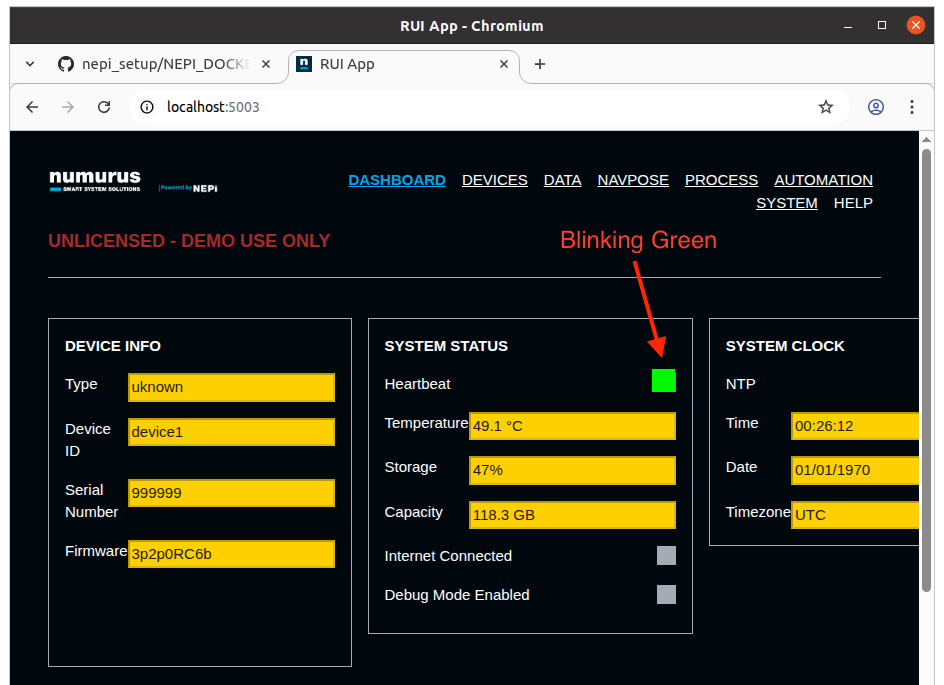
3) Open Chromium browser. Check that the NEPI Resident User Interface (RUI) is running by opening the Chromium browser tab and entering the following in the URL search bar:
localhost:5003
4) Confirm that the NEPI RUI dashboard loads and shows a blinking green indicator, signaling that the core NEPI software system is running and that NEPI is active.
NOTE: RUI Controls related to User, Device, Time, Network, and Software management require the NEPI Docker service running.
NEPI Docker Service Setup
This step enables NEPI to automatically start whenever the system boots, so you don’t have to manually start it each time.
1) Enable NEPI Docker service:
nepienable
NOTE: You can disable the NEPI Docker Service with ‘nepidisable’

2) POWER CYCLE your system when complete.
3) Log back into nepihost (sudo password is ‘nepi’).
4) Verify that your NEPI Container is running after reboot:
dps
NOTE:If your container is not running, try to debug NEPI Docker Service issues with the following commands:
nepirestart
nepistatus
nepilogs
NEPI Docker IP Configuration
If you want to connect to your NEPI device from a network connected PC, setup and test a remote connection following these instructions
Additional Resources
If this is your first time setting up NEPI Docker, it is highly recommended that you read through the “NEPI Docker Installation Notes” section on the official GitHub setup guide: NEPI Docker Host Setup Instructions on GitHub.
If you encounter any issues starting and running the NEPI Software container, see the debugging steps in the “NEPI Docker Debugging” section at the bottom of this page: https://github.com/nepi-engine/nepi_setup/blob/main/NEPI_DOCKER_LITE_SETUP.md
For additional support, visit the NEPI Software Community Forum at: NEPI Community
Debugging Troubleshooting
If your container is not running, try to debug NEPI Docker Service issues with the following commands:
nepirestart
nepistatus
nepilogs
For detailed debugging instructions, logs, and advanced troubleshooting steps, refer to the official GitHub setup guide: NEPI Docker Host Setup Instructions on GitHub.
NEPI Software Shortcut Functions
View all NEPI Docker command-line shortcuts anytime by typing:
nepihelp
NEPI Docker Local PC Connections
In this step, you will configure your NEPI device’s IP address to allow local PC’s to find and communicate with with the device. ]
1) Open the Settings app and navigate to the Network Settings page. You can also click the “Show Applications” button at the bottom-left corner of your screen, search for the “Settings” application, and launch it from there.
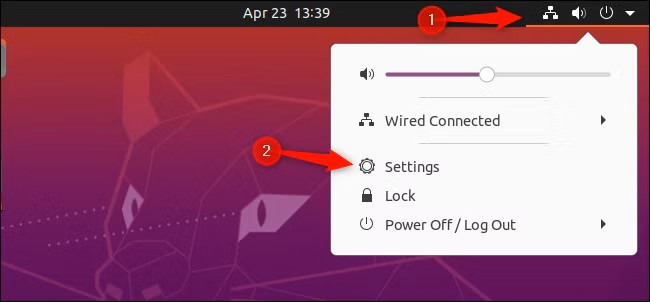
2) Select your Wired connection. Click the gear icon to edit the connection.
3) Go to the IPv4 tab and set IPv4 Method to Manual.
4) Add an address with the following values:
Address: 192.168.179.103
Netmask: 255.255.255.0
5) Click Add or Save, then close the settings window.
6) Reboot your NEPI device
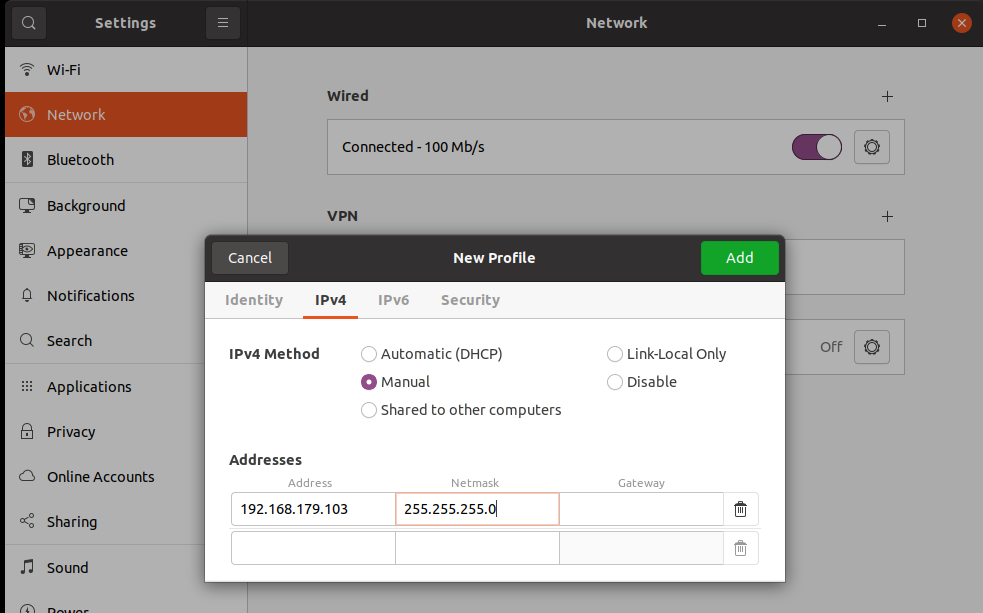
Your device is now configured with a static IP address and ready for the next step.
NEPI Docker Camera and AI Detection Test
If you want connect a camera and run an AI model on the camera’s video stream follow the instruction in the following ‘Using NEPI’ tutorial: https://nepi.com/tutorials/connecting-a-camera-to-an-ai-detector/